
CapEasy Filing Assistant
Grant Studio drafts your application. This Chrome extension carries the checked answers into the government or incubator portal, one field at a time, so you are not copying forty boxes by hand.
Who can use it: any founder with a credit pack. Get a credit pack. Programmes that show “Submit from here” in your workspace are sent from the CapEasy website itself, so they do not need the extension.
The 2-minute version
- Install the extension and pin it (first box below).
- Open the programme's form in a tab and log in there yourself.
- Click the pinned icon. The panel finds your draft for that form (or asks which one) and reads the page.
- Press Fill all I can. Then type the “Still yours” items and attach your files on the portal.
- Read everything, then press the portal's Submit yourself.
Install it (2 minutes, once)
Download the extension (zip, under 1 MB)
The Chrome Web Store listing is in review. Until it is approved, install it from the zip; it takes two minutes and works the same way.
- Unzip the download (right-click, Extract All). Choose the folder it makes,
capeasy-filing-assistant-0.1.2:manifest.jsonsits directly inside it. - In Chrome, type
chrome://extensionsin the address bar and press Enter. - Switch on Developer mode (top right).
- Press Load unpacked and choose the unzipped folder.
- Click the puzzle-piece icon, pin “CapEasy Filing Assistant”, then click it to open the panel.
Works in Chrome and other Chromium browsers (Edge, Brave). Nothing to install on the portal side. Sign in to CapEasy in the same browser.
How to use it, with pictures
Open the panel the first time
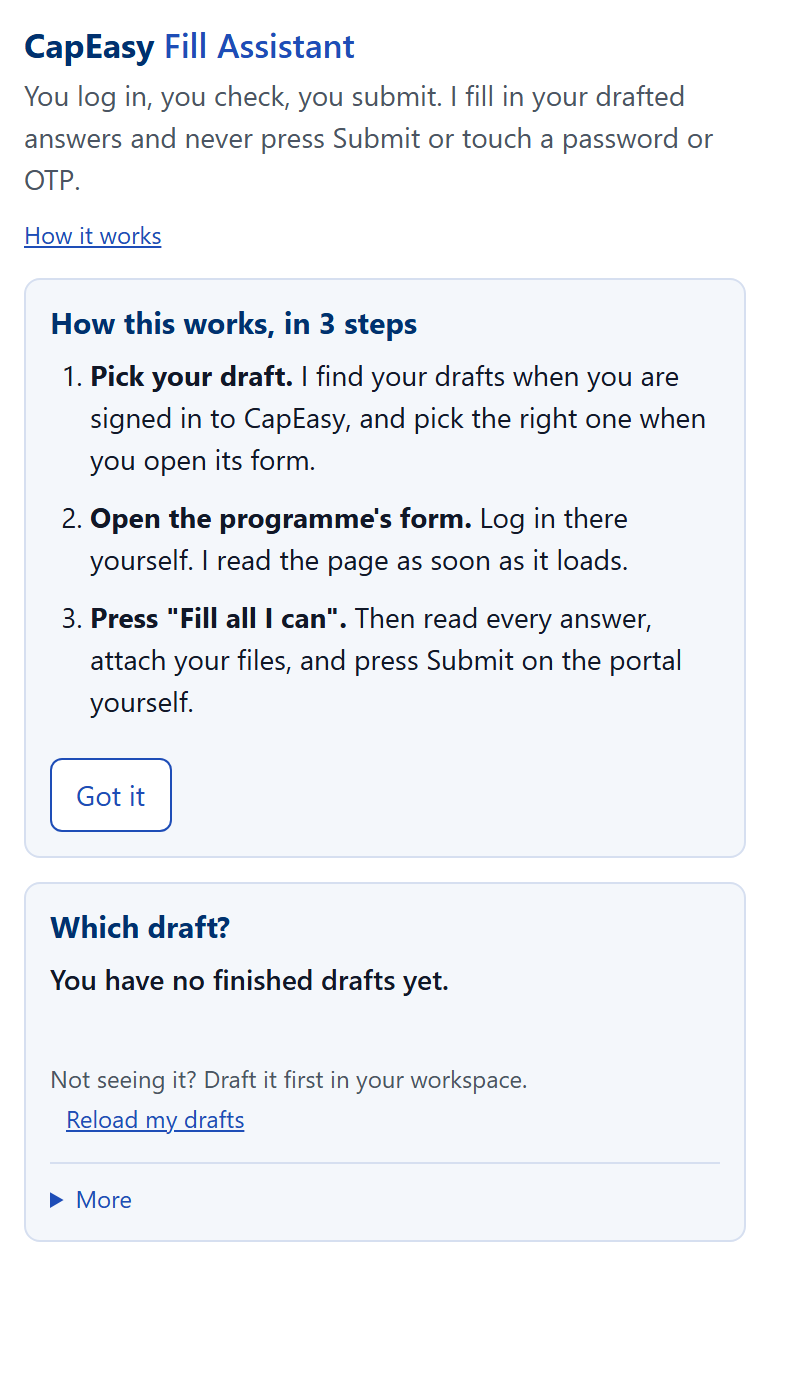
Press: Click the pinned CapEasy icon in Chrome.
Then: The panel opens on the right and shows three short steps. Press Got it.
Your drafts load by themselves
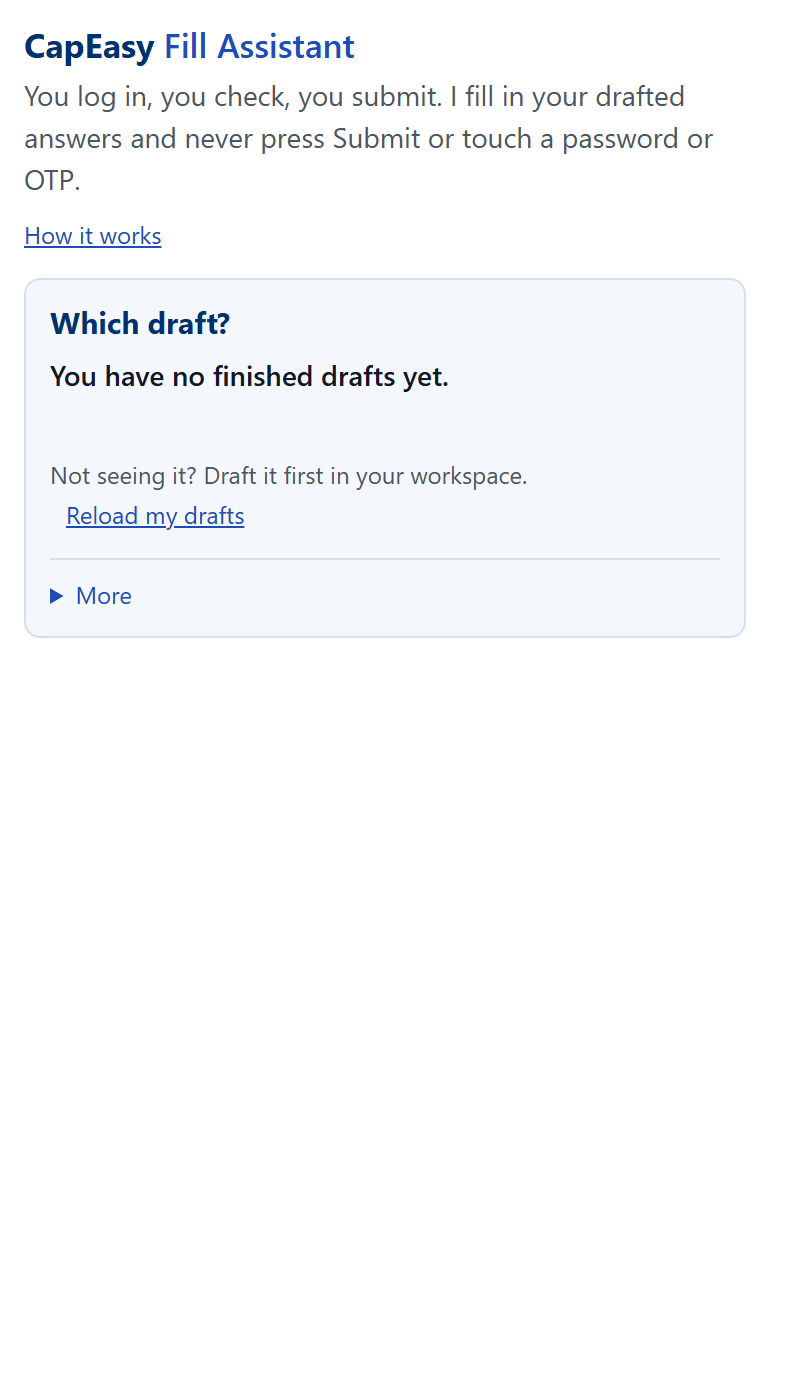
Press: Nothing, when you are signed in to CapEasy: the panel lists your drafts. Otherwise press Load my drafts.
Then: On a programme's form it picks the matching draft by itself. If it has to guess, it shows the likely ones first and a list of all your drafts.
Or practise on a sample first
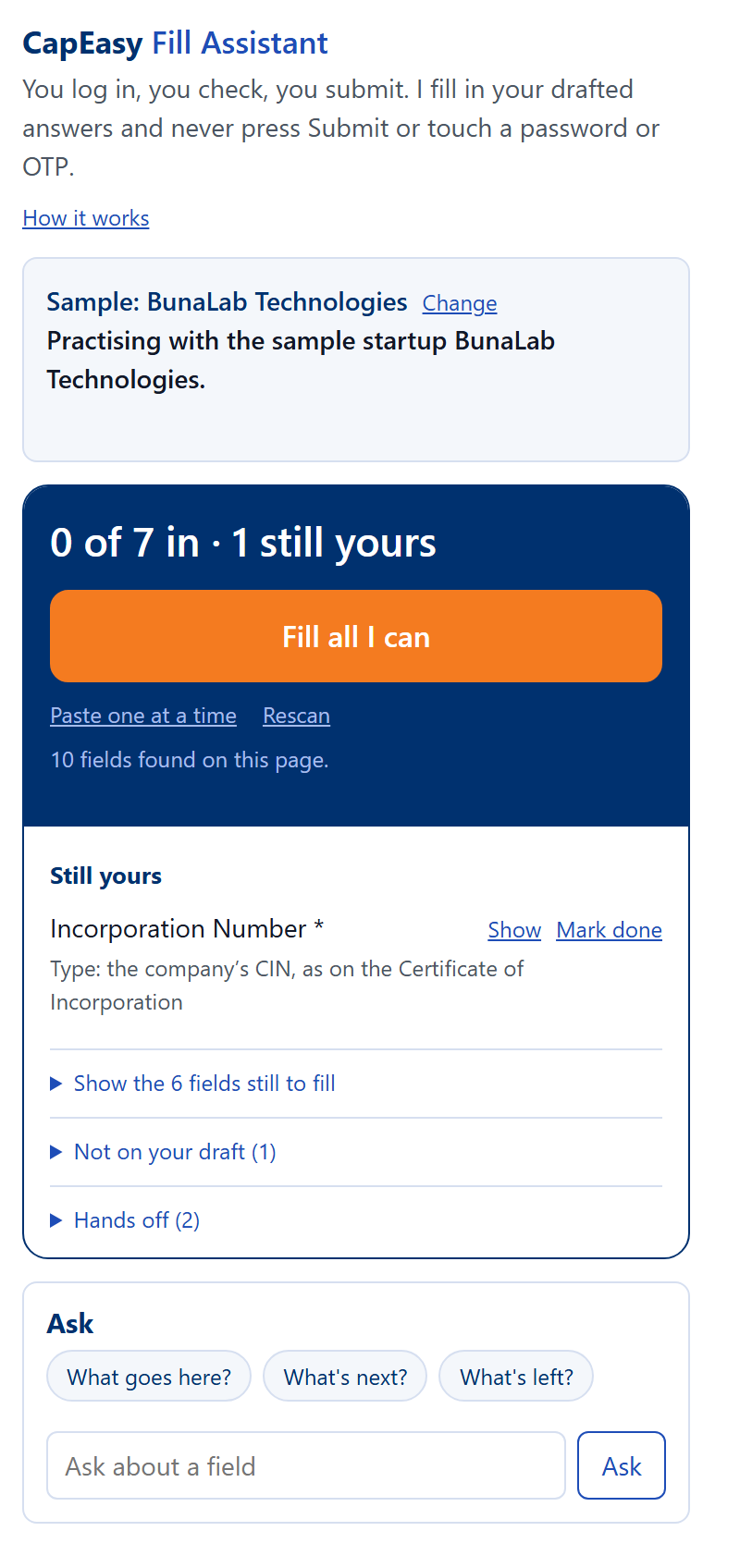
Press: Open More, then Load sample.
Then: A pretend startup is loaded and the page is read at once. The one big button, Fill all I can, is ready. Nothing is sent anywhere.
See what is still yours
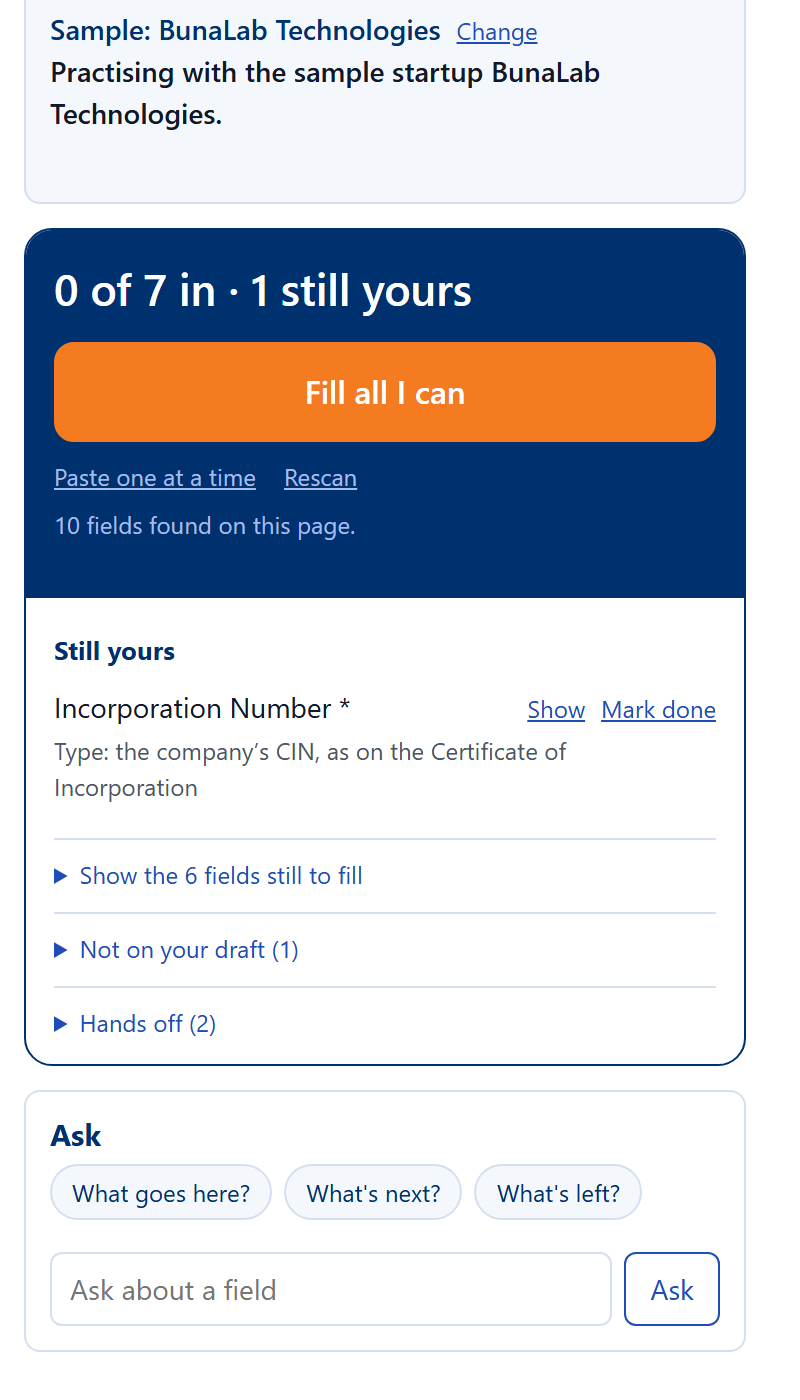
Press: Nothing yet. The panel has already read the form.
Then: It says how many boxes it can fill, lists what only you can type (PAN, Aadhaar, OTP, exact figures) and what to attach. Passwords and Submit are never touched.
Press Fill all I can
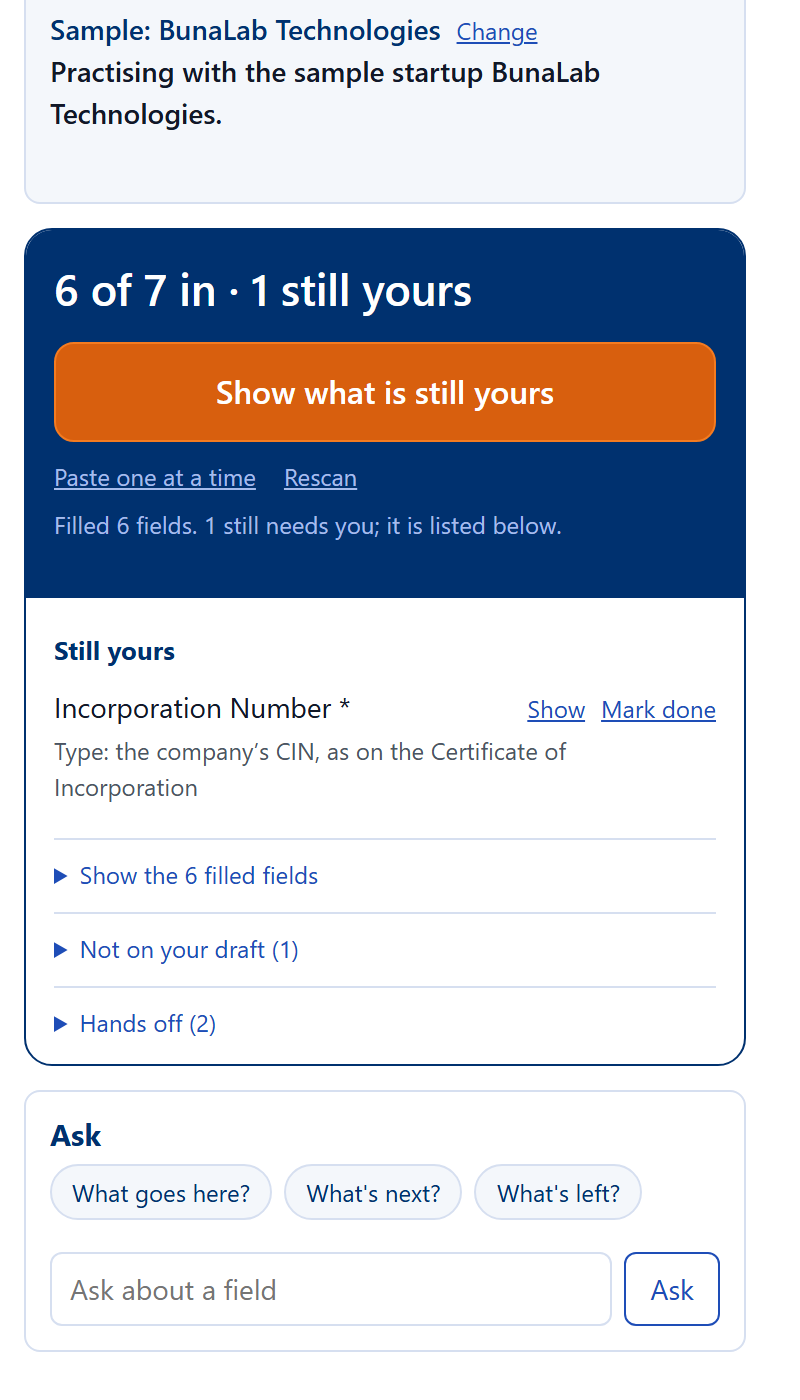
Press: Fill all I can. (Paste one at a time is there if you prefer.)
Then: Every answer lands in the portal's own box. The rows that are still yours stay at the top; do them on the portal, then press Mark done.
Ask when you are stuck
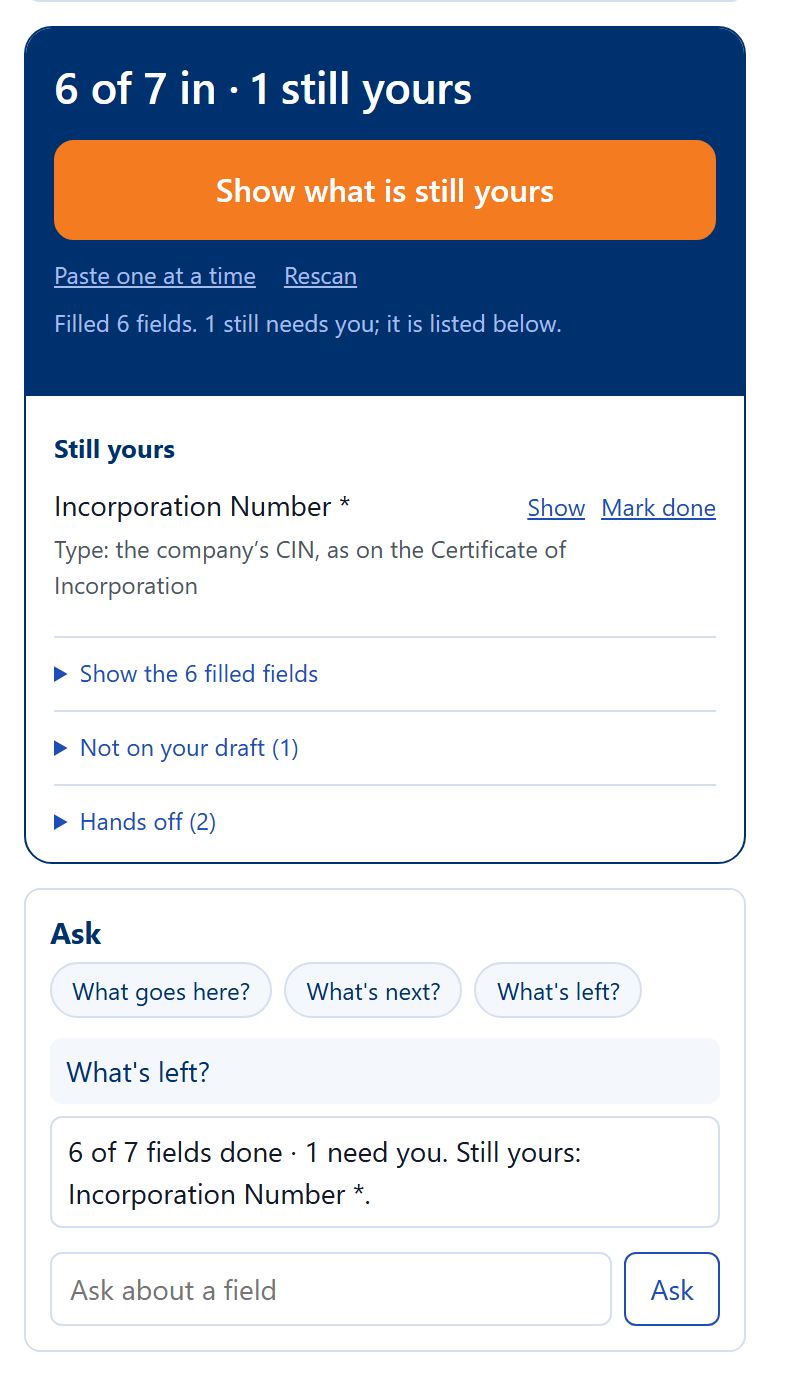
Press: Click into a field on the portal, then What goes here?
Then: The panel explains the field from your draft. Then read the whole page, attach your files and press the portal's Submit button yourself.
The first time you open the panel it shows three quick steps; press How it works to see them again.
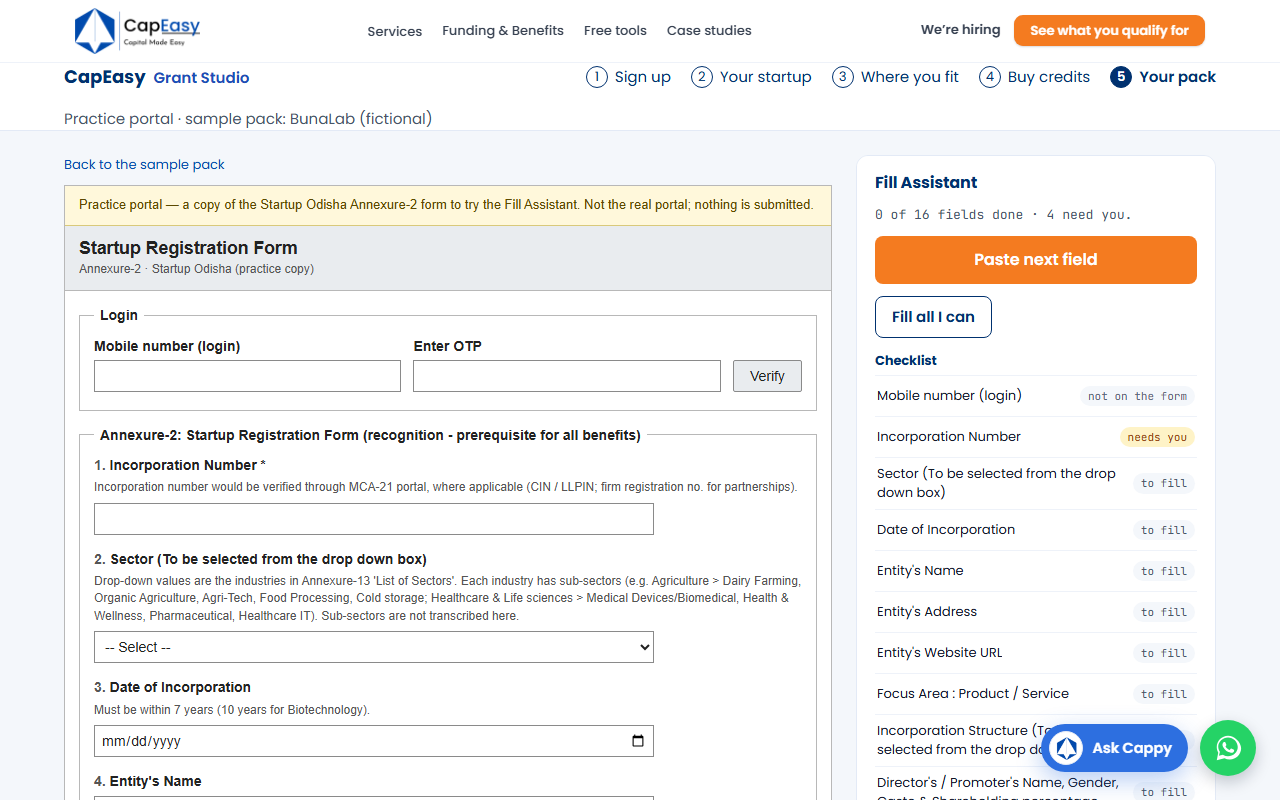
Practise first
Open the practice portal, a pretend government form, then load the sample in the panel (More, then Load sample) and press Fill all I can.
What it never does
- It never reads or fills a password or one-time-code box.
- It never presses Submit, Pay or Final. You submit.
- It never touches a file upload and never stores your portal login.
Details in the privacy policy.